Looking for the best USB drive for Tesla Sentry Mode? Here’s the short version: skip the cheap thumb drives. They can overheat, corrupt footage, and throw “check USB drive” errors. This can happen right when you need the recording. Below are the drives that have a better record of holding up. Plus, learn how to set them up and fix them when they break.
Best USB Drives for Tesla Sentry Mode
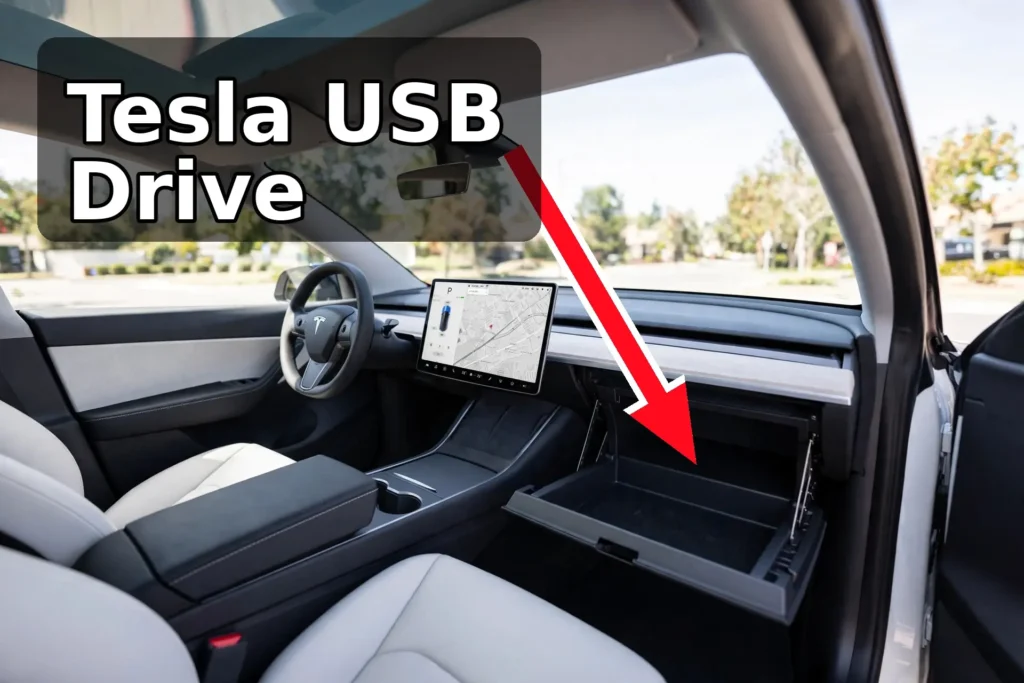
Tesla’s official specs: at least 64 GB, sustained write speed of 4 MB/s or more, USB 2.0 compatible, formatted as exFAT. The car can format the drive itself. Plug it into the glovebox USB port and go to Controls > Safety > Format USB Device.
Two things worth knowing. Teslas built from around 2020 include a pre-formatted USB drive in the glovebox. So, you may already have one. And newer cars record from six cameras per clip, which eats storage fast. As a result, 256 GB is the practical minimum now. And a 1 TB drive holds up to about 24 hours of footage before overwriting.
For the full rundown on how Sentry Mode works, see my Tesla Sentry Mode guide.
The Short Answer for Tesla USB Drives
You can find Tesla USB drives for sale many places online. However, these are affiliate links to the best-selling drives on Amazon. They have lots of reviews and higher ratings.
- Best overall: Samsung T7 Shield 1TB. It’s fast, rugged, and handles heat.
- Best budget pick: Samsung PRO Endurance microSD + USB reader. It’s built for continuous recording, and a cheap reliable option.
- Best rugged alternative: SanDisk Extreme Portable SSD V2. It’s weather-resistant if your car bakes in the sun.
Best Overall: Samsung T7 Shield 1TB
The regular T7 has been the Tesla owner’s default for years. The Shield version adds a rubberized, drop- and heat-resistant shell. This matters in a parked car in summer. 1TB gives you roughly a full day of footage buffer before the car starts overwriting. Format it in the car and you’re done.
One note: on older Model S and X, very large drives can exceed the USB port’s power limit. But for a Model 3 or Y, 1TB is fine.
Check for the best prices on Amazon: Samsung T7 Shield 1TB
Best Budget Pick: Samsung PRO Endurance microSD + Reader
If you don’t want to spend SSD money, a high-endurance microSD card is the next best thing. These are designed for dashcams and security cameras. There’s constant writing, which is exactly what Sentry Mode does. Pair it with a small USB 3.0 reader and it plugs straight into the glovebox port with no cable clutter.
Check for the best prices on Amazon: Samsung PRO Endurance microSD + USB reader
Best Rugged Alternative: SanDisk Extreme Portable SSD V2
Comparable to the T7 Shield: fast, compact, weather-resistant. Some owners prefer it for extreme heat or cold. Either SSD is a good buy — pick whichever is cheaper when you check.
Check for the best prices on Amazon: SanDisk Extreme Portable SSD V2
SSD vs microSD vs Thumb Drive for Tesla Dashcam
Quick comparison so you can pick your tradeoff:
- Portable SSD: most reliable, most storage, costs more. Best if you run Sentry Mode daily.
- High-endurance microSD + reader: cheap, tiny, designed for constant recording. Best budget option.
- Regular thumb drive: works at first, then dies. Not rated for continuous writing. This is what causes most “check USB drive” errors.
If you only remember one thing: don’t use a random thumb drive you had in a drawer.
What Size USB Drive Do You Need for Sentry Mode?
Tesla says 64 GB minimum, but that’s the floor, not the recommendation. Here’s how it breaks down in practice:
- 64 GB: about an hour of footage buffer before the car starts overwriting.
- 256 GB: the sweet spot for most people now that six cameras record per clip.
- 1 TB: up to roughly 24 hours of footage. Best if you park on the street or leave Sentry Mode on for days.
Bigger is better because the car overwrites old footage automatically. A bigger drive just means older incidents stick around longer before disappearing.
How to Format a USB Drive for Tesla Sentry Mode
Easiest method is to let the car do it:
- Plug the drive into the USB port in the glovebox.
- Go to Controls > Safety > Format USB Device.
- Done. The car formats it as exFAT and creates the TeslaCam folder.
Doing it on a computer instead? Format as exFAT, then create a folder called TeslaCam at the root of the drive. Don’t use NTFS because Tesla won’t read it.
Can You Use One USB Drive for Sentry Mode and Music?
Yes. You’ll need to partition the drive yourself on a computer: one partition with a TeslaCam folder for recordings, the rest for music files. Note that the car’s built-in format option wipes the drive to a single partition. So, do the partitioning on your computer, not in the car. Honestly, drives are cheap enough now that most people just run two separate drives.
Tesla Dashcam Check USB Drive: How to Fix It
This is the most common Sentry Mode problem and it’s almost always the drive. Try these in order:
- Reformat in the car. Controls > Safety > Format USB Device. This fixes corruption from fragmented writes.
- Try the other glovebox port (if your car has two) to rule out a port issue.
- Replace the drive. If the error comes back after reformatting, the drive is dying. Cheap thumb drives do this constantly. Switch to an SSD or high-endurance microSD.
- Check for fakes. Counterfeit drives (common from marketplace sellers) lie about their capacity and corrupt once full. Buy from a reputable seller.
How to View and Delete Sentry Mode Footage
While parked, tap the Dashcam icon in the app launcher on the touchscreen. Clips are organized by time and location. You can also pull the drive and open the TeslaCam folder on a computer.
To clear space: Controls > Safety > Delete Dashcam Clips wipes everything. Or you can delete individual clips from the viewer by swiping. The car overwrites old footage on its own, so you only need to do this if you want space back now.
What to Avoid
- Cheap no-name thumb drives. They aren’t rated for continuous writing and they corrupt. This is the #1 cause of “dashcam unavailable” errors.
- NTFS-formatted drives. Tesla won’t read them. Use exFAT (or let the car format it).
- Plugging the dashcam drive into a USB hub. Plug it directly into the glovebox port.
FAQ
Does a Tesla come with a USB drive for Sentry Mode?
Cars built from around 2020 include a pre-formatted USB drive in the glovebox. It works, but it’s small. As a result, upgrading to 256 GB or more means less babysitting.
Does Sentry Mode work without a USB drive?
It still monitors and sends phone alerts, but nothing gets saved. Without a drive there’s nowhere for the footage to go.
Can I use a regular USB thumb drive for Tesla Dashcam?
It’ll work for a while, but regular thumb drives wear out fast under constant recording. An SSD or high-endurance microSD lasts far longer.
Why does my Tesla say “check USB drive”?
Usually a failing or full drive. Reformat it in the car first (Controls > Safety > Format USB Device). If the error returns, replace the drive with one of the picks above.
How do I view Sentry Mode recordings on my phone?
In the Tesla app, you can view clips remotely while the car is parked. For the full archive, pull the drive and plug it into a computer.
The Verdict
The best USB drive for Tesla Sentry Mode for most people is the Samsung T7 Shield 1TB. It’s fast and tough enough for a hot car. It’s also big enough that you won’t have to think about it for months. On a budget, the Samsung PRO Endurance microSD with a reader gets you most of the reliability for less money.
Keep Your Tesla Protected
A good USB drive is the cheapest insurance for your Tesla. One saved clip of a parking lot hit-and-run pays for it many times over. Grab one of the drives above, format it in the car, and you’re set.
Want more? Here are some related guides:
- Tesla Sentry Mode Guide. Find out everything Sentry Mode can do beyond just recording.
- 40 Tesla Accessories. Find both essentials and fun add-ons for your Tesla.
- Tesla Valet Mode Guide. Learn how to lock down your car when someone else is behind the wheel.
Thanks for stopping by and feel free to reach out with any questions.